


THANK YOU so much for your help today!
I heard you also managed to get the printer working too.


Keeping your devices up to date is always very important, software updates allow bugs to be fixed, security issues to be addressed and new features to be added to all your devices. You'll usually get notified if there are any updates for your devices, but here we'll run through the most common machines and how you can check to see if you have any updates waiting to install.
Windows 10
Windows 10 is very good at installing updates in the background and restarting your PC to install them at a time that shouldn't be too much of an inconvenience, but if you want to check for updates yourself, it's very easy.
Firstly, click on the Start button and then click on Settings. Now click on Update & Security.
Windows will now check to see if there are any updates available.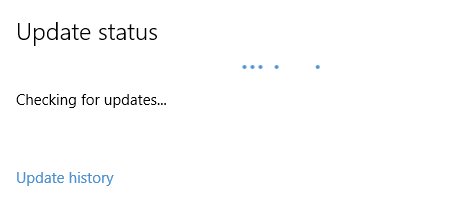
If there are any available updates, you'll be asked if you want to install them. If there aren't any, Windows will confirm that it's up to date.
Mac OS
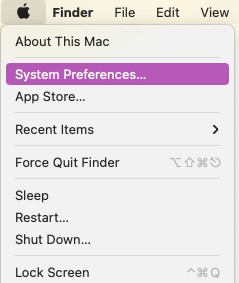
To check if your Mac is up to date, just click on the Apple Menu and then click on System Preferences.

iOS
On your iPhone, iPad or iPod touch, you can check for updates by tapping on Settings, then General and then Software Update.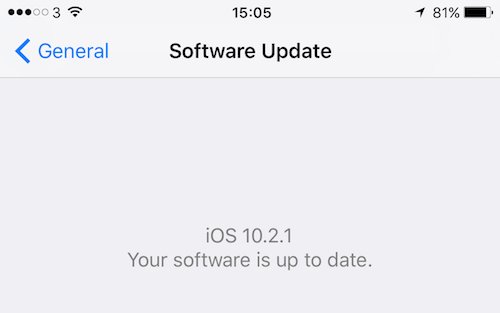
Once your device has checked, you'll be notified of any updates or informed that your device is already up to date.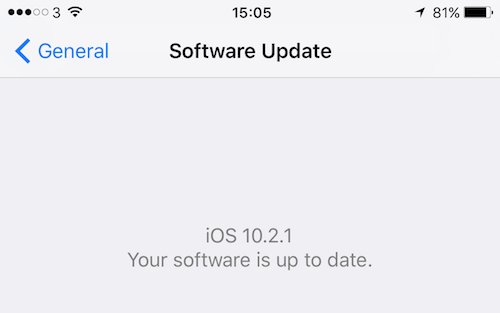
Android
To check for any updates on your Android device, just go into Settings, About and then System Update. Once your device has checked for updates, you'll be notified on the screen.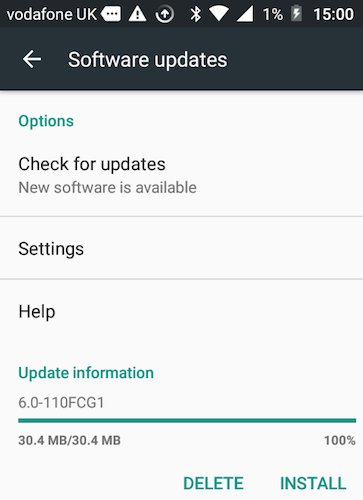
FEATURED PRODUCTS






Featured Product

Why not follow us?


Tekeez support both PC/Windows users and Mac users equally, so whether you have a Mac or a PC we can help.
Tekeez are proud to have been providing legendary IT Superhero services and support for 30 years, since 1994.
Why not try our services and discover the secret of our success?






© 1994-2026 EuroSolve Ltd - Tekeez® is a registered trademark and brand of EuroSolve Ltd
0333 023 0001.
0333 023 0001.
Tekeez® Oxford:
Prama House • 267 Banbury Road • Oxford • OX2 7HT
Tekeez® Caerphilly:
Britannia House • Caerphilly Business Park • Van Road • Caerphilly • CF83 3GG