


Thanks so much Martin, it’s such a relief! I’m really grateful.


When you're writing an email or a document on your iPhone or iPad, you'll often want to correct typos or edit the text as you would when you're using a desktop PC. This is nice and easy on both the iPhone and iPad and we'll show you how below:
When you need to go back and edit you simply hold your finger on the text you want to edit and you'll see the cursor appear where your finger is. You'll also get a magnified view of the cursor and surrounding text so you can see exactly what you're doing.
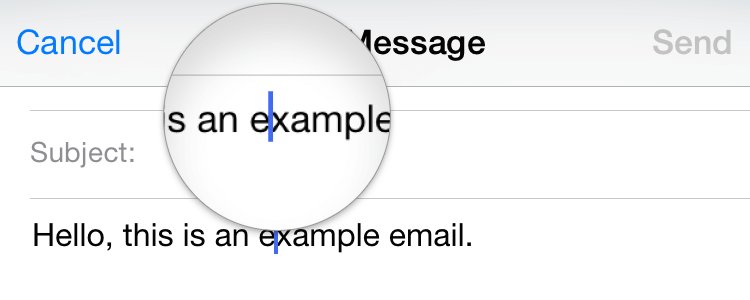
Once you've got the cursor in the right place you simply lift your finger off the screen and start typing. If you leave the cursor in the middle of a word, you'll also be offered the option to select that word, when you tap on Select you'll see the options below.
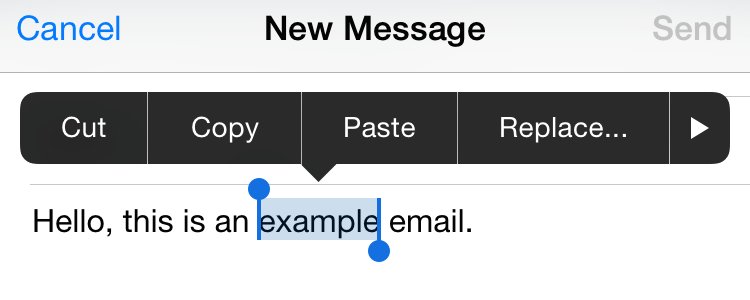 You can now use the standard cut, copy and paste commands to edit your text. In this example we're going to cut this word out of our text and move it, so you tap on Cut and the word will disappear and move into the phone's clipboard.
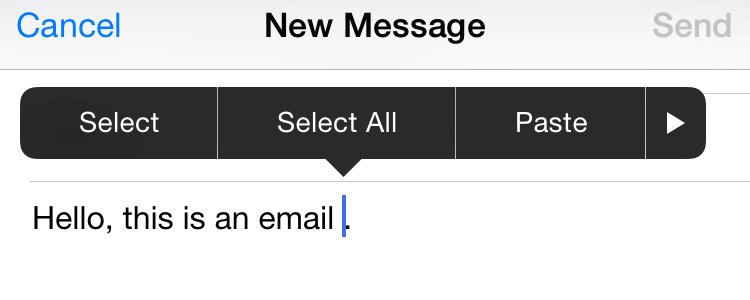 We've now moved our finger along to the end of the text and lifted our finger from the screen so all we need to do now is tap on Paste and the word will be pasted in to that location.
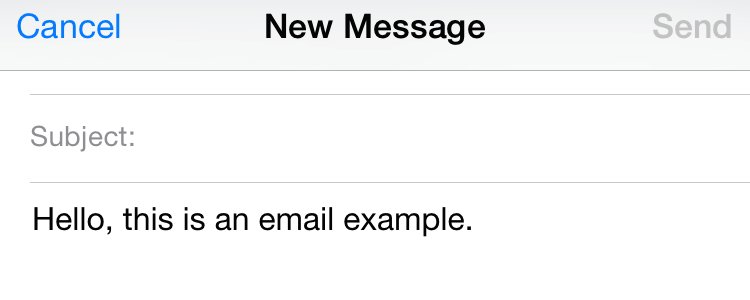 Using this same method of selecting text, you can spellcheck your text and format it with bold, italic and underline and even change the style and colour if you're working in a word processing document in Pages or Word.
When you need to go back and edit you simply hold your finger on the text you want to edit and you'll see the cursor appear where your finger is. You'll also get a magnified view of the cursor and surrounding text so you can see exactly what you're doing.
Once you've got the cursor in the right place you simply lift your finger off the screen and start typing. If you leave the cursor in the middle of a word, you'll also be offered the option to select that word, when you tap on Select you'll see the options below.
You can now use the standard cut, copy and paste commands to edit your text. In this example we're going to cut this word out of our text and move it, so you tap on Cut and the word will disappear and move into the phone's clipboard.We've now moved our finger along to the end of the text and lifted our finger from the screen so all we need to do now is tap on Paste and the word will be pasted in to that location.Using this same method of selecting text, you can spellcheck your text and format it with bold, italic and underline and even change the style and colour if you're working in a word processing document in Pages or Word.FEATURED PRODUCTS







Featured Product

Why not follow us?


Tekeez support both PC/Windows users and Mac users equally, so whether you have a Mac or a PC we can help.
Tekeez are proud to have been providing legendary IT Superhero services and support for 30 years, since 1994.
Why not try our services and discover the secret of our success?






© 1994-2026 EuroSolve Ltd - Tekeez® is a registered trademark and brand of EuroSolve Ltd
0333 023 0001.
0333 023 0001.
Tekeez® Oxford:
Prama House • 267 Banbury Road • Oxford • OX2 7HT
Tekeez® Caerphilly:
Britannia House • Caerphilly Business Park • Van Road • Caerphilly • CF83 3GG